3-2: Arithmetic Operators (continued)
Exercise 3-1: Calculating the Area of a Circle (continued)
To cause the calculation to happen, and to display the result, we must program the _Click event of the btnArea button. The program statements in this event must use the value from the txtRadius textbox, convert it to a number, multiply it by itself and also multiply it by the value of Pi.
This is an expression ...
3.141 * txtRadius.Text * txtRadius.Text
using the multiplication operator twice with operands being an explicit constant (3.141) and the txtRadius.Text property. We're hoping that the value of the txtRadius.Text property, which is a string value (more on this later) will be ok to use with the multiplication operator, i.e. that the string value will be converted into a number. Normally of course you cannot multiply a string value and a number; that would be like saying 3.141 * "John" * "John".
In order for the user to see the answer the value resulting from this expression must be assigned to the Text property of the txtArea textbox, as in
txtArea.Text = 3.141 * txtRadius.Text * txtRadius.Text
Double click the btnArea button in the design tab and the code tab will open with the code template for the _Click event of the button already entered. Add the statement given above.
Also implement the btnExit button's _Click event. (Refer to Chapter 2 if necessary.)
The purpose of the btnClear button is to remove whatever values are already in the textboxes. To do this we simply need to assign a value that the user cannot see to the Text properties of the textboxes. The user cannot see a space, so you could write these two statements in the _Click event
txtArea.Text = " "
txtRadius.Text = " "
While this does work (try it!) it is not standard practice. Neither is it standard practice to write txtArea.Text = "", i.e. double quotes with no character, not even a space, between them. This too does work.
The correct approach is to use a special value called a null string, for which VB provides a name, vbNullString. Thus we should write
txtArea.Text = vbNullString
txtRadius.Text =
vbNullString
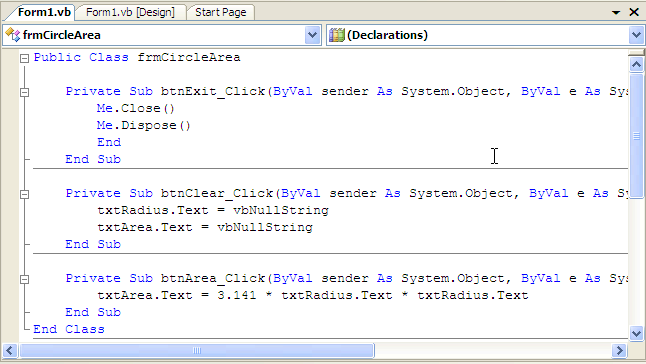
The full code for the form is shown in Figure 3-2.
Figure 3-2: The code
tab for the Area of a Circle