4-6: More on Nested If Statements
Exercise 4-5: Zeller's Algorithm (continued): Using a Message Box
All of the above calculations have taken place in the first branch of an If statement that is executed if the user has input valid data, i.e. a date. In previous exercises if the user has not entered valid data we have issued an error message via the Text property of a label object. However, it is more usual for a new window to appear containing the error message. The window must be closed before the user can continue with anything else thereby forcing the user to take notice of the problem.
Such windows are called dialog boxes in Visual Basic, and they are easily created in simple forms using the MessageBox() class. This class is found in the System.Windows.Forms namespace, and is shown in the Object Browser in Figure 4-10.
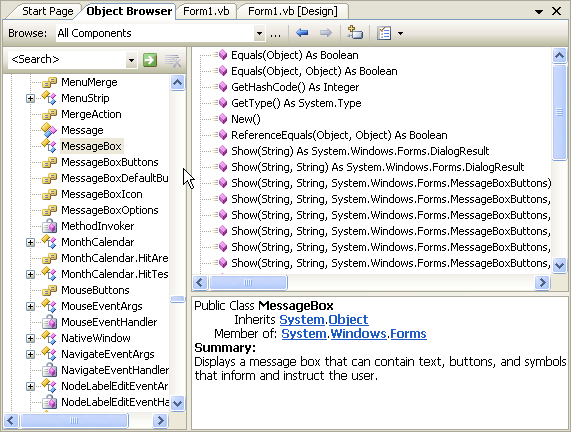
The class has a number of methods, but the one we need to use now is the Show function method. Read about it in the Object Browser. It is heavily overloaded - meaning that there are many versions that differ only in the parameters that can be used.
The one compulsory argument is a string containing the message that is to be displayed in the dialog box. The second string parameter specifies what is displayed in the title bar of the dialog box window. We'll use both of these parameters.
The function returns a value that is of type System.Windows.Forms.DialogResult. This means that the result returned by the function should be assigned to a variable that has been declared to be type System.Windows.Forms.DialogResult . The value of this result depends on which button in the message box is pressed. Message boxes can have multiple buttons (e.g. Yes and No, or Yes, No and Cancel) and the programmer may need to write different code depending on which button the user chooses to press. In this exercise there is by default only one button on the message box form. Hence we simply assign the result from the function to a variable - buttonPressed - that must be declared as specified above, and do nothing else with that result.
Thus we could write (in the block of the If statement that processes an invalid date)
Dim buttonPressed as
Windows.Forms.DialogResult
buttonPressed = MessageBox.Show("Invalid Date.
Please re-enter.", "Invalid Date")
txtDate.SelectionStart =
0
txtDate.SelectionLength = Len(txtDate.Text)
txtDate.Focus
This is introducing some new concepts that we will not explain fully just yet, so simply write this as shown here. The last three statements prepare the interface so that the user can conveniently enter a new date, but only after the user has disposed of the dialog window.