4-7: Exercises
Exercise 4-7 (continued)
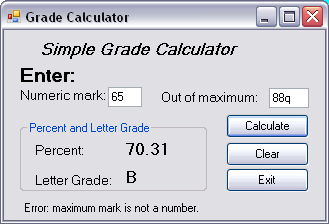
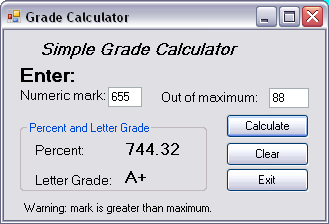
This program should validate the user input using the approaches we have discussed so far (but remember, we will soon encounter the Validating event). If the string data in the Text properties of either of the textboxes cannot represent a number the program should display an error message and not calculate or display the percent mark or letter grade. The error message is displayed via the Text property of a label object, as shown in Figure 4-14.
A string representing a negative number will pass this first validation, but of course a negative number is meaningless in this situation. The program should also issue an error message and display no results if either of the textbox values represents a negative number.
More than this, as shown in the lower image in Figure 4-14 the program also issues a warning if the mark entered by the user happens to be greater than the maximum (out of) value also entered by the user. Although in this case the program nevertheless displays the results.
The click event for the Calculate button performs these tasks. It should first check that the data from the textboxes is numeric - if not it should issue the error message. If the data is numeric the code should check if the values are both positive - if not it should issue an error message. If they are both positive it should check that the mark is less than the maximum (out of) value and if not it should issue the warning message. Regardless, if they are both positive it should continue with the calculation of the percentage mark and the letter grade.
The letter grade is assigned by an
If ... ElseIf ...
ElseIf ... ... Else ... End If
structure, which we leave for you to
design.
You should make sure that the Clear button works correctly of course, clearing any message that may have appeared as well as the data and results. But in addition, it is possible that the user did not press the Clear button, choosing to simply modify one of the input values. You should ensure that any error/warning message disappears if the new data entered is correct.