4-7: Check Box and Option Controls
Exercise 4-6: Global Classics Cinema continued ...
The interface shown in Figure 4-11 is complicated. We would like to reduce clutter and distraction by only displaying those objects that are necessary for the user as they interact with the program. We will force the user to first select a movie name, then a time, then a ticket type (i.e. adult, child, senior), then the number of such tickets. Thus, initially the interface appears as shown in Figure 4-12, where the time radio buttons are not visible, the ticket type checkboxes are disabled, and the controls for setting the number of tickets are not visible.
interface
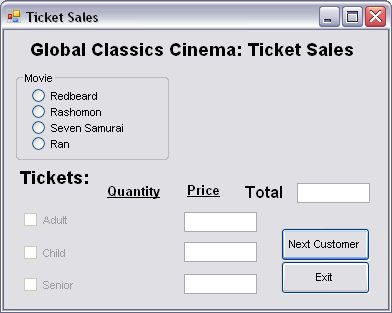
This version of the interface also occurs after a click on the Next Customer button. It only permits the user to select a movie or exit the program.
It is best to program the New event of the form to create this state for the interface.
At this time you have probably not placed the other controls (for ticket sales, prices, etc.) on the form. So now add the three check box controls, the six buttons for increasing or decreasing the number of tickets, and the seven textboxes (three for the number of tickets, three for the prices of the three types of tickets, and one for the total price, along with the label objects (four of them) shown in this figure and in Figure 4-11.
In addition add the Next Customer and Exit command buttons.
Specify appropriate names for these control objects. For example, chkAdult, btnAdultMinus, txtAdultQty, btnAdultPlus, txtAdultPrice, etc.
Of course, the idea is that the Tickets section of the interface provides the user with a way to specify the type of ticket, as well as a means of specifying how many tickets of each type. In addition the price of each type, and the total price is displayed. The quantity of each type of ticket is increased (or decreased) by clicking on the + or - buttons on either side of the textbox. These are simply command buttons for which the Text property has been assigned + or - as its value.
Observe that more than one checkbox can be selected (see Figure 4-11), as opposed to a group of radio buttons where only one can be selected. Also notice that in Figure 11 the Child checkbox is not selected and the quantity and price is consequently not displayed.
You can now program the New event to cause the radio buttons and group box for the movie times to be invisible, to disable the three checkboxes, and to cause all the command buttons and textboxes that conrol and display the number of tickets to be invisible. You simply need to set the Visible properties of the objects to False, and in the case of the checkboxes to set the Enabled property to False.
You can test the interface again, without having written any more code. You should observe that when you start the program the form window appears as in Figure 4-12. I.e. Even though you have designed the form to contain all of the controls, many of them are not visible, and the checkboxes are disabled.