4-7: Exercises
Exercise 4-9
The final exercise in this chapter provides further practice with groups of radio button objects and if statements. However, it also introduces a new approach to validating user input, and is thus important for you to complete.

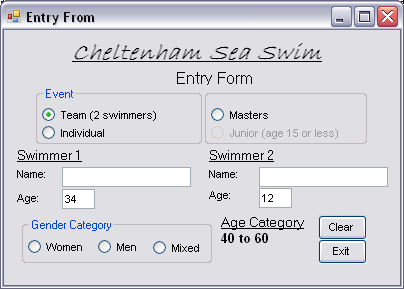
The context is an entry form for a swimming competition. The interface is shown in the figure. The Masters or Junior event may be entered by individuals, but only the Masters event may be entered by a team. Thus if Team is selected the Junior option is disabled and the Masters option is selected (by the code you will write). If the user selects the Junior option before selecting Team or Individual, the Team option is disabled (since there is no junior team event) and the Individual option is selected.
If the team event is chosen a second set of name and age textboxes appears and a third option button for the Gender Category (namely Mixed) also appears. The second figure shows this.
Design the interface making sure to choose appropriate names for the control objects. Note there are two frames at the top of the form. One has the Text property set to Event, and the other, which is positioned right next to the first, has no value for its Text property.
The Compute It button under the Age Category label actually has a label object positioned underneath it, which is invisible in the first image in Figure 4-16. The idea is that once the age(s) has(have) been entered the Compute It button will be pressed. The command button will become invisible and the label, displaying an age category will be made visible. Any change to the age values or the event selection radio buttons will make the label invisible and the command button visible again.
For individual entrants the Age Category label will simply display one of less than 12, 12 to 15, 16 to 20, etc. (you can decide exactly what the ranges should be). For team entrants the age category is based on the sum of the ages of the team members, and the categories could be combined age < 40, combined age 40 - 60, combined age 60 - 80, and combined age > 80 for example.