3-2: Arithmetic Operators (continued)
More on using Classes: The Object Browser
Exercise 3-1 has one further issue that you should consider: why did we use the explicit value 3.141 for Pi? 3.141 is not a very accurate value for Pi and it is easy to imagine a situation where our calculation should be much more accurate.
Most computer languages provide a named value for Pi (and other commonly used constants) and VB is no exception. The value for Pi provided by VB is very accurate. But to use this we must understand classes and the structure of VB a bit better.
VB provides an extensive collection of classes for the programmer to use. You have already been using some of them: Form, Textbox, Button, etc. These classes are organized in a naming convention that we'll begin to look at now.
The Object Browser provides access to the collection of classes in VB. From the Project menu select Object Browser and the tab shown in Figure 3-4 opens.
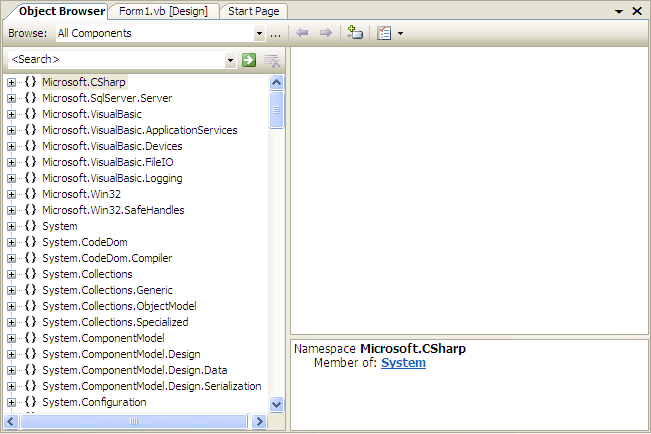
The left hand panel contains an extensive list of names. You'll only use a very small fraction of these resources in this book. If you scroll to the bottom you'll find the name System.Windows.Forms and buried amongst a lot of other names you'll find Button, Label, and Textbox, which are the classes you have been using.
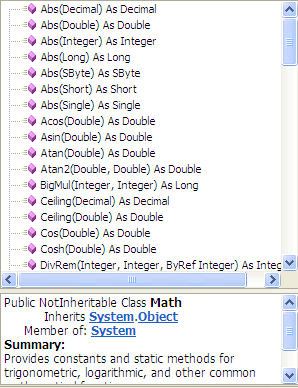
However, return to the top of the list and select the System group (click on the  icon). Within this collection you'll find the name
Math; click on it. The right hand panels should now be
similar to Figure 3-5.
icon). Within this collection you'll find the name
Math; click on it. The right hand panels should now be
similar to Figure 3-5.
The bottom panel contains a brief description of the Math class itself (because that is what is currently selected), while the upper panel contains a list of all the methods (or functions) and other members of the class. This is not as complicated as it seems! The names Abs, Cos, Exp, Log, Max, Min, Round, and Tan are probably familiar to you. We'll return to it later in the book. For now scroll down the list and you'll find PI; click on it to see the brief description in the lower panel.
So, having found PI how do we use it in our program? Its name is composed of the hierarchy System, Math and then PI itself; and these pieces are joined with the dot. Thus, System.Math.PI is the name for the value and we can use that instead of 3.141 in our program.
Edit the _Click event making this change and test your program again.
We'll often find ourselves returning to the Object Browser to discover how to use features of VB. You should explore the System.Windows.Forms grouping of classes now. For example, select the Button class, and then in the right panel that lists methods etc. find Click, Font, Height, MouseDown, and Text, i.e. things you have used already. Select each and read about them in the bottom right-hand panel. At the moment you probably won't understand a lot of what you read, but you will before long!