4-7: Exercises
Exercise 4-7
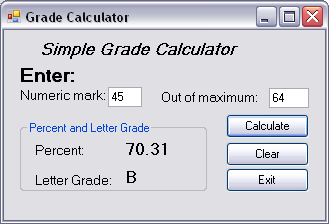
This first exercise designs a program that allows you to enter a mark (for a test or other item of school work) and the maximum mark possible for that item, and calculates the percent mark and letter grade. The letter grade may be determined from the percent mark according to the following table (you may implement any other mark to letter grade conversion scheme if you wish):
| Percent Mark | Letter Grade |
|---|---|
| >= 90 | A+ |
| >= 80 | A |
| >= 75 | B+ |
| >= 70 | B |
| >= 65 | C+ |
| >= 60 | C |
| >= 55 | D+ |
| >= 50 | D |
| >= 40 | E |
| < 40 | F |
The user interface is shown in the figure. Note that the results of the calculation are displayed in a groupbox for which the Text property has the value Percent and Letter Grade.
As you design the interface remember to use the conventional prefixes for the control object names - i.e. txt, btn, lbl , etc.
The code for the click events of the Clear and Exit buttons is straight forward. Remember that after pressing the Clear button it would be convenient for the user if the cursor was placed in the Numeric Mark textbox so that they could type a new mark without having to click there first.