3-3: Events and Sequential Processing (continued)
Exercise 3-2: Compound Interest
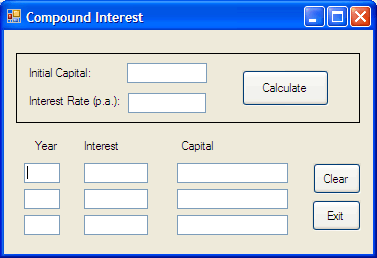
Launch the Visual Basic development environment and develop the GUI shown in
Figure 3-3. The program is intended to calculate compound interest on some
amount of invested capital for three years at a specified annual interest
rate, displaying the amount of interest and the (growing) amount of the invested
capital each year. The form, which has the Text property
value set to Compound Interest,  has five label objects, three
command button objects, eleven textbox objects and one shape object (the solid
rectangle boxing the topmost control objects on the form).
has five label objects, three
command button objects, eleven textbox objects and one shape object (the solid
rectangle boxing the topmost control objects on the form).
The value of the Text property of a form appears in
the title bar of the form window. You can see in Figure 3-6 that the form window
has the words Compound Interest in its title
bar.
The text boxes should all have their (Name) properties changed as follows: txtInitialCap (for the Initial Capital textbox), txtRate, txtYear1 to txtYear3, txtInterest1 to txtInterest3, and txtCapital1 to txtCapital3.
As mentioned in the last chapter this will mean that instead of writing statements involving names such as Text1.Text or Text3.Text you will be able to use the much more meaningful names txtInitialCap.Text or txtYear1.Text, for example.
Also change the (Name) properties of the buttons to btnCalculate, btnClear, and btnExit.